Ultimate VC Addons - Disable modules & Google Fonts to reduce database bloat
Tutorials
Ultimate Addons for WPBakery Page Builder (formerly Visual Composer) by Brainstorm Force can be a convenient way to add nicer-looking elements to your VC-built website. However, all convenience comes at a price – and in this case, it's a huge drain on your website's load time and server resources.
Here are two simple steps you can take to reduce the effects of Ultimate Addons by 80-90%.
1. Disable unused modules
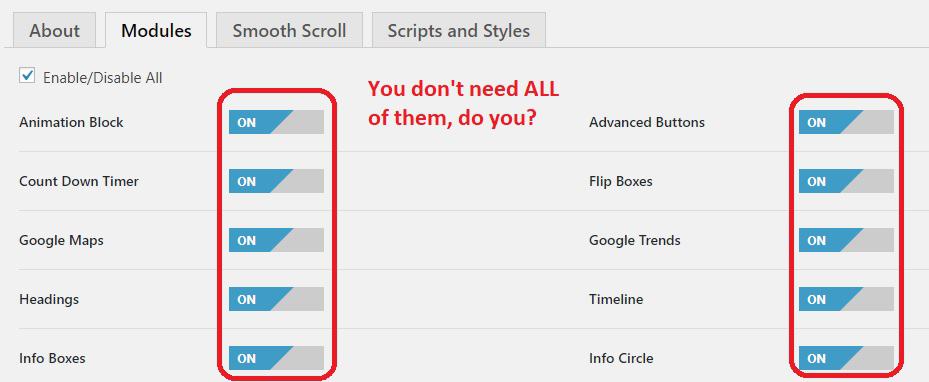
This is super easy – simply go to Ultimate > Modules and disable the modules you don't use. This will speed up your Edit Page and VC Add Element significantly.
Oftentimes you'll likely only use 2-3 modules, so the rest can be safely disabled. If you want to see how they look, refer to the demo website ultimate.brainstormforce.com instead of loading them all and testing them one by one in Preview mode.
2. Disable unused Google Fonts
This is a little more technical; please proceed with care, as you'll need to edit the database directly via phpMyAdmin.
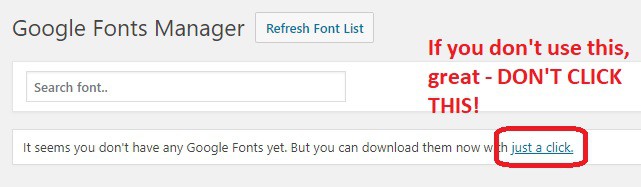
If you don't use Google Fonts Manager and the font list is empty, GOOD, LEAVE IT THAT WAY.
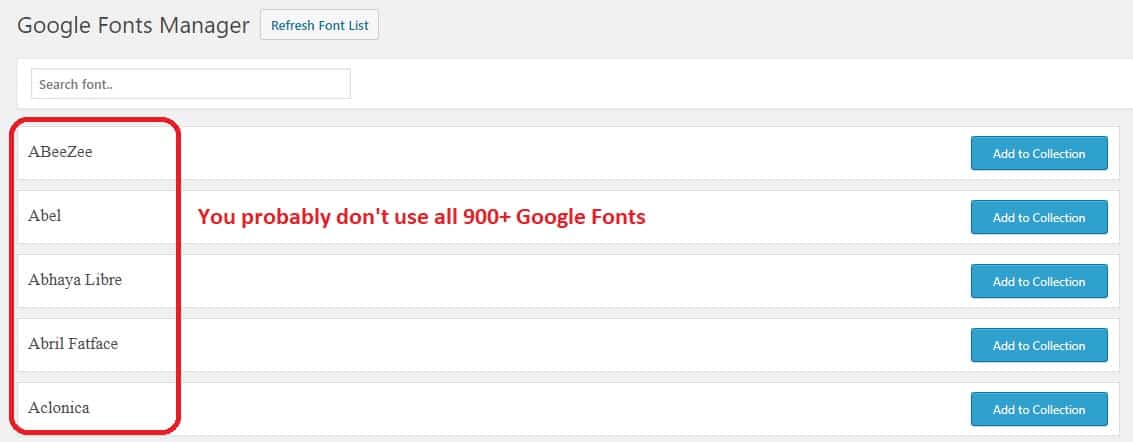
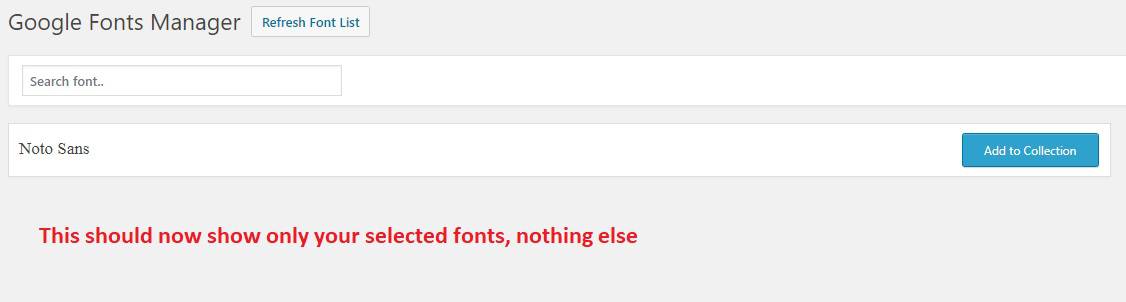
Otherwise, decide what Google Font you want to use, and add it to your collection. Go to Ultimate > Google Fonts and add the ones you actually use into your collection.
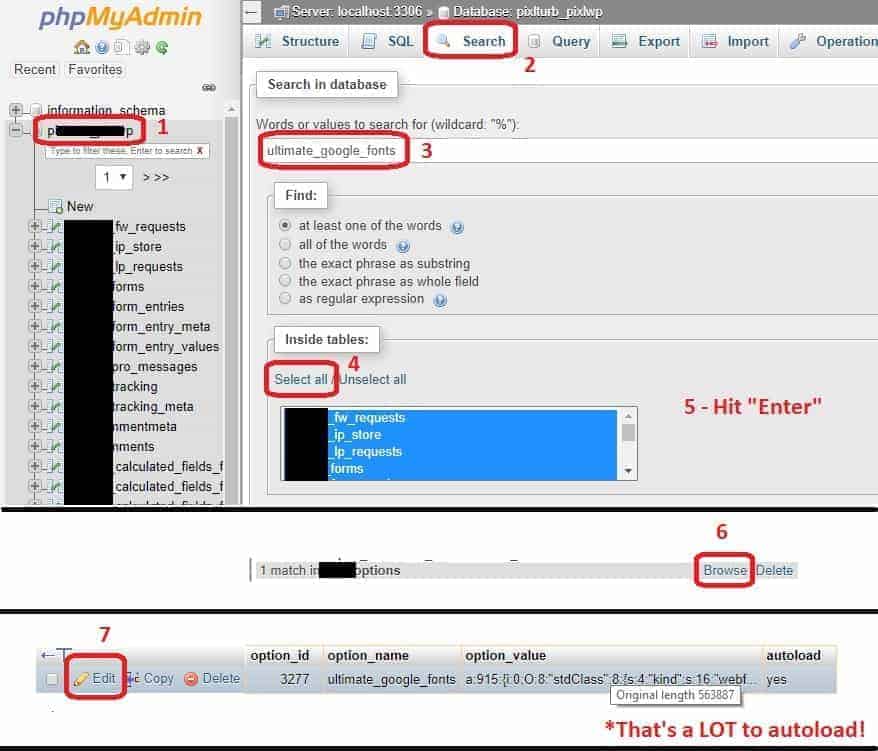
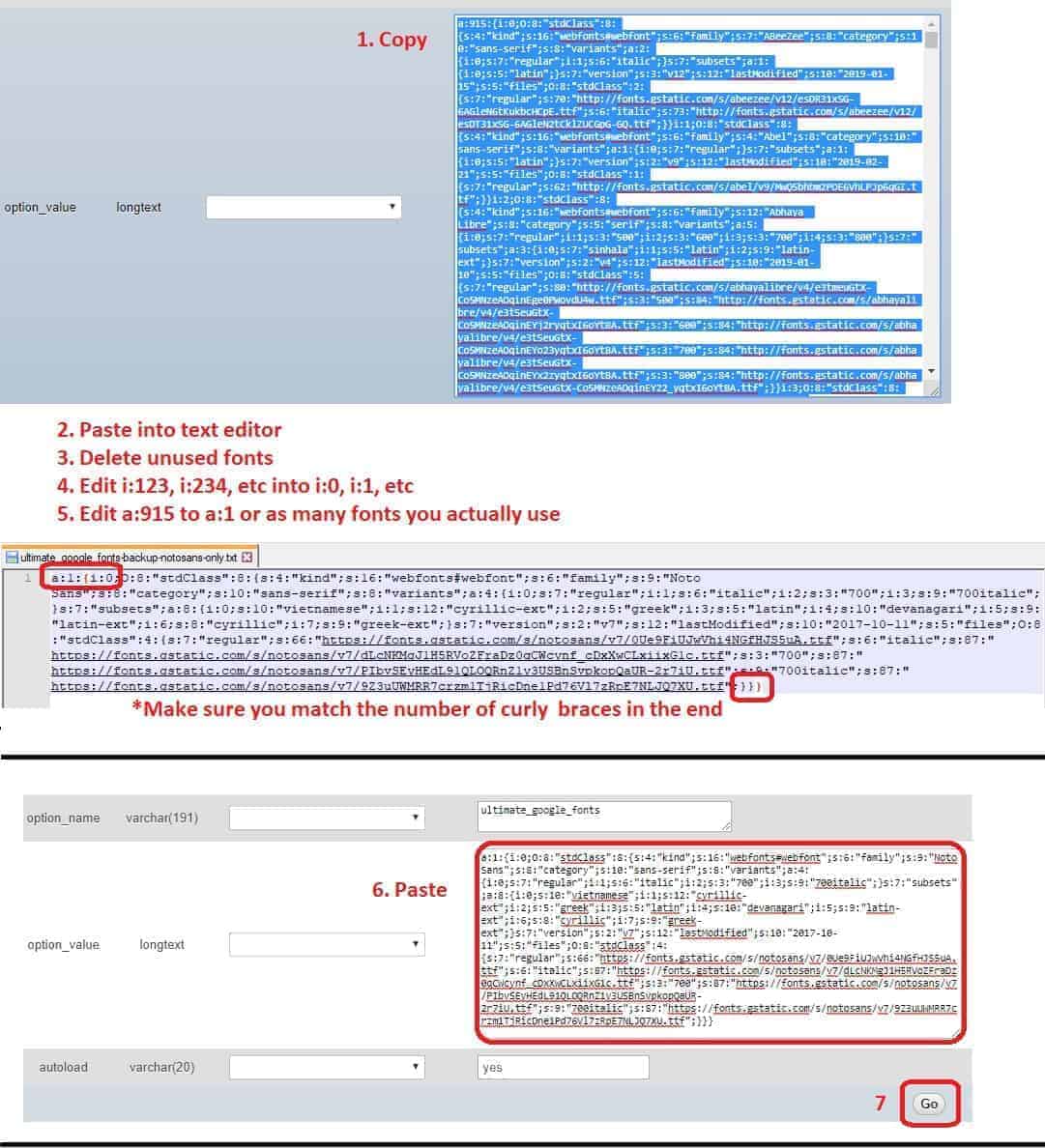
Next, log in to phpMyAdmin and do a general search for "ultimate_google_fonts", browse the one entry in tableprefix_options, then edit the row (you could also just click into the option_value and edit from there, if you're familiar with database editing):
This is the tricky part. Copy everything from option_value, and paste it into a text editor. I prefer Notepad++ as it's colour-coded and easier to read.
One warning before you touch anything: back up your database first. This edit is fiddly, and a mis-count anywhere in the serialized array corrupts the option.
- Each font is loaded from "i:0" onwards till the gstatic.com links. This is tricky, but you'll have to manually identify the fonts you use and delete the rest. Sometimes fonts have subsets which also start from their own set of "i:0", "i:1", etc, so be careful here.
- Identify the fonts you do use, and delete the rest. Take care to match the curly braces at the start and end of the code.
- Change the start of the code, "a:915", to however many fonts you use, e.g. "a:2" if you use two fonts.
- Change the "i:123" of your fonts to "i:0", "i:1", "i:2" accordingly.
- Copy the final edited code back into phpMyAdmin, and hit Go to save.
If you did this right, you'd have reduced the autoload by 99%:

That's it! I hope this has been as helpful for you as it has been for me. Have any questions, or any further tips? Comment below!
Special thanks to Johnny Nguyen for originally raising this issue to me as part of his WordPress Speedup service. He also does ultrafast WordPress Hosting (something that had previously frustrated me deeply before finding him) – check it out!