How NOT to lose track of what day it is when working alone
Tips and tricks
Have you ever just lived through the week without realising what day it is? Then someone says "wow, it's already Thursday" and you get a shock: "What? I thought it was Tuesday!" You're not alone.
This is common for those of us who stare at a screen all day. You know why? Because Windows only shows the date, never the day.

In this tutorial, I'll show you how to change this to the below, so you always know what day it is.

Here's how to do it on Windows
The menu path has shifted around over the years – here's the quickest way to get there today, plus the classic route below if your screen doesn't match.
On current Windows 11: go to Settings > Time & language > Language & region, scroll to Related settings, then click Administrative language settings (the exact link text can shift a little between Windows versions). That drops you straight into the same classic dialog covered in Steps 3 and 4 below, so you can skip straight there.
If you don't see that link, or the layout on your machine looks different, here's the longer route that still works:
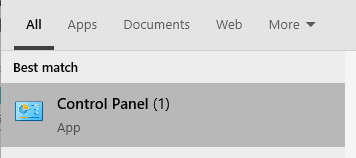
Step 1: Hit the Windows key on your keyboard, then type "Control Panel". Hit Enter, or click the Control Panel app to open it.
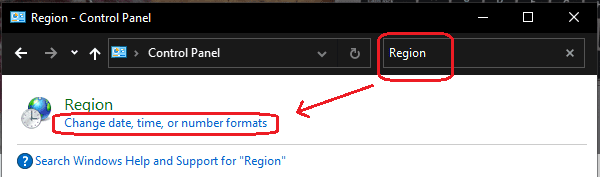
Step 2: In the search bar in the top-right corner, type "Region", then click the "Change date, time, or number formats" link in the search results.
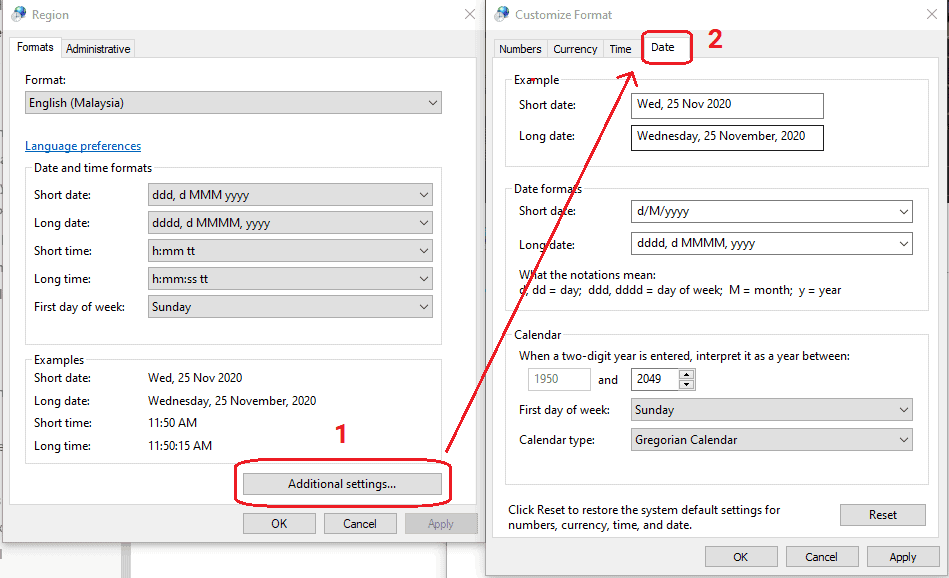
Step 3: Click the "Additional settings..." button at the bottom, then the Date tab in the window that opens.
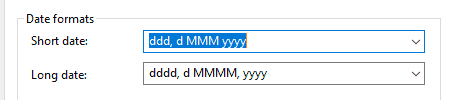
Step 4: Change the Short date format to "ddd, d MMM yyyy", and hit OK.
Alternatively, you can customise your own format using the notation notes. Basically, just use the d/m/y notations and add any symbols to separate them, for instance "ddd, d-MM" results in "Wed, 25-11".
Hit Apply to preview it on your taskbar. Note that if the date is too long, it may not show the date altogether, so test out different formats until you find something that works.

That's it, you're done! I hope this little tutorial helps you keep better track of what day it is, so you are able to focus on important work instead of losing track of time doing "busy work".
For Mac users
For instructions for Macs, click here: How to Show or Hide the Day of the Week on a MacBook